
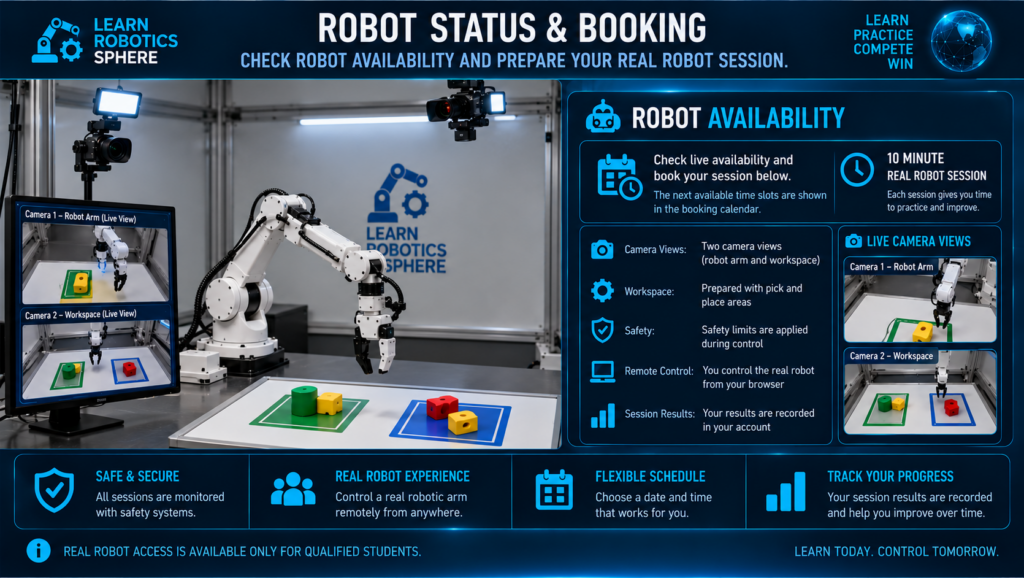
Check Robot Status Before Booking
Make sure the real robot is available before reserving your teleoperation session.
Before booking a session, check the current status of the real robot.
The Robot Status panel will show:
- Robot availability — Online, Offline or In Session
- Camera status — confirms that the live workspace view is available
- Connection status — shows whether the robot is ready for remote control
- Current session — indicates whether another student is using the robot
- Next available time — shows when the next session can be booked
Only students who complete the simulator training and achieve a final score of at least 80/100 qualify for Real Robot access and session booking.
When the robot is online and available, qualified students can continue to session booking.
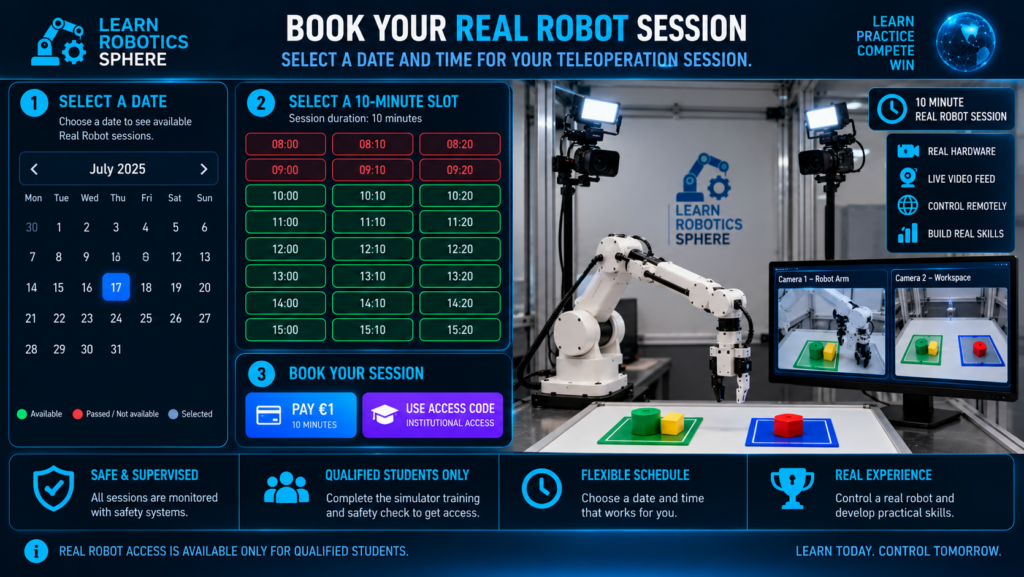
The booking interface allows qualified students to select an available date and time for a 10-minute Real Robot teleoperation session. Choose an available time slot and confirm your session before connecting to the robot.
Book Your Real Robot Session
Choose an available date and time for your real robot teleoperation session.
Qualified students can reserve a 10-minute Real Robot session when the robot is online and available.
Booking Steps:
- Select an available date.
- Choose an available time slot.
- Confirm your 10-minute session.
- Complete the Real Robot safety check before connecting.
- Join your session at the scheduled time.
- Verify the live camera and robot status.
- Continue to Live Teleoperation.
Green = Available • Red = Booked • Grey = Unavailable
Only students who have completed the simulator training with a final score of at least 80/100 can book a Real Robot session.
MY UPCOMING SESSIONS
Select a Date
Selected Session
One institutional credit will be used only if the booking succeeds.